
The Matador Jobs Pro Job Object Customizer Extension enables you to add more fields from the JobOrder object on Bullhorn to your standard Bullhorn Job Import. This will allow you the flexibility to build features right for your unique business use case!
Prerequisites
Matador Jobs Pro Job Object Customizer Extension has the following minimum requirements:
- PHP Version 7.1, which is 2 versions greater than Matador Jobs Pro core.
- WordPress version 5.9, which is 10 versions greater that Matador Jobs Pro core.
- Matador Jobs Pro version 3.8.0.
If you do not meet these requirements and try to install the plugin, it will not initialize and print an admin notice informing you of the minimum requirements.
Installation
Follow our standard Plugin Installation Guide to install the plugin.
Settings
Upon completing installation, go to your Matador Jobs Pro settings page by going to WordPress Admin > Matador Jobs > Settings and then navigate to the new Job Object tab.

You will see a set of instructions and a button inviting you to Load Job Fields. Provided you are logged into Bullhorn, click Load Job Fields. This will query your Bullhorn instance to get your configured Field Mappings structure on your JobOrder object.
After a few moments, the job fields will load from Bullhorn and the page will list all the importable data fields on the job object. They are sorted into “Standard”, “Custom”, and “CorrelatedCustom” fields.
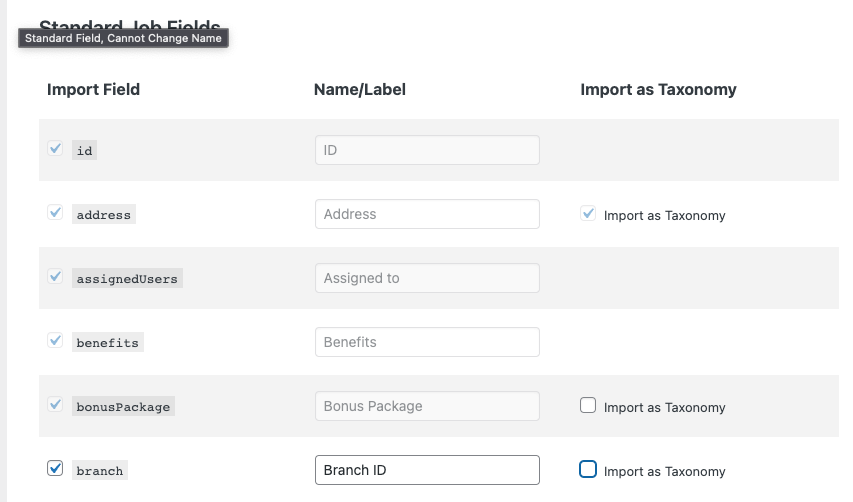
Each row has a checkbox and the API field name on the left, a text input box with the field label in the middle, and either nothing or a checkbox labeled “Import as Taxonomy” on the right. Fields that cannot be imported as a Taxonomy do not have the option to do so.
If any of these fields are disabled and you cannot change them, it means these fields are included in your default import in the way described. For example, assignedUsers is included by default and address is included by default and the taxonomy locations is powered by it.
User Guide
Import Field as WordPress Post Meta
Check the checkbox next to the field name to add it to your import. It will be imported into the WordPress Post Meta as the name in the Label text field, converted to Snake Case.
The Label text field is initially pre-populated from Bullhorn data, but you can change it two ways. First, you can edit the label in your Bullhorn Field Mappings in the Bullhorn ATS and then after saving Load Job Fields to get the update. You also can change the text, if allowed, in the settings, but please note this will only apply to your WordPress site.
If you import the branch field and the field’s label is “Branch ID”, a subsequent sync of Matador Jobs Pro will check each job for a value in the branch field. Any values found will be saved on each job’s WordPress post entry in the WordPress Post Meta as branch_id.
Access Imported Field from WordPress Post Meta
Now that the data is imported, you can use it! Here are some ideas:
- Add the field to your Page Builder made single or archive templates using the
[matador_job_field]shortcode. - Add the field to your standard Job Single or Job Archive templates by using template actions or template overrides and either the
matador_the_job_field()function or theget_post_meta()function. - Add the field to your Job Info Header by filtering
matador_template_job_info_default_fieldsor including the field in a[matador_job]or[matador_jobs]shortcode (or function) call. - And more! The sky is the limit!
Import Field as WordPress Taxonomy
Check the checkbox “Import as Taxonomy” next to the field label to also import the field as a taxonomy. Matador will generate a WordPress Taxonomy based on the titleized or “kebab case” field label, and then create taxonomy terms during import.
If you import the branch field as a taxonomy, Matador will generate a Job Branch ID taxonomy and a subsequent sync of Matador Jobs Pro will check each job for a value in the branch field, creating a taxonomy term or adding the post to an existing term.
Access Imported Field from WordPress Post Meta
Now that your data is imported, you can use it! Here are some ideas:
- Update your
[matador_search]shortcode with the new taxonomy as a drop-down.[matador_search fields=keyword,category]can become[matador_search fields=keyword,category,branch-id]. - Add a taxonomy filter to your job page sidebar by adding
[matador_taxonomy taxonomy=branch-id method=filter]. - And more!
Heads Up/Warnings
Using this plugin requires your awareness to a few important considerations.
Changing Job Object Settings will Trigger a Full Sync
When you update your Job Object Settings, Matador will do a full “Hard” sync on the next scheduled sync. A full sync ignores cached data and takes a much longer time to complete, especially when you site has many jobs.
Too Many Imported Job Object Fields Could Crash Sync
We at Matador Jobs highly recommend you limit your data sync to as few fields as possible. Loading too many fields can cause your import to exceed various limits from character limits for batches of imported data to memory limits on your website.
You Have The Ability to Import Sensitive Data
The Job Object Customizer gives you the ability to import all data fields, which could include fields with sensitive data, potentially exposing these data to the world. Use with caution.
Developer
… coming soon. Ways for a developer to further customize the experience using the Job Object Customizer Extension.