
The Application Form block is for displaying an application form on your site. It can be used for both job-specific application forms, and for general application forms.
Using the Application Form Block
Job Specific VS General Applications
When used in a context where job details are available, submissions to the form generated by this block will be saved as applications to that specific job. For example, including the Application Form block in your job single template will mean the application form appears alongside any other job details you include in the template. When viewing a specific job on the frontend, users will then be able to apply to that job using the application form that appears on the page.
When used in a context where no job details are found, submissions to the form generated by this block are saved as general applications. For example, you may want to create a page for candidates to submit their CV and join your talent pool. Simply create this page and add the Application Form block to it. When users visit this page and submit the form their submissions will be saved as general applications.
Application Method
Matador Jobs Pro offers a setting to determine where the application form appears by default. While this setting was created primarily to help non-technical users alter the structure of their site prior to the advent of Full-site Editing, this setting still has a role to play when using blocks to build your job board.
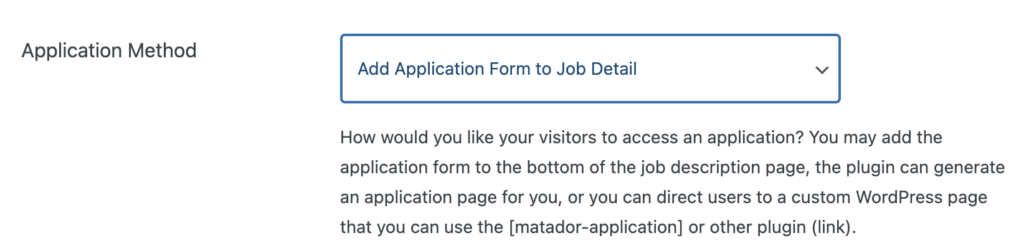
This setting has 3 options:
- Add Application Form to Job Detail
- This option will cause the application form to be included inside ‘the content’, and any apply links on the site to link to the job single with a anchor to go straight to the application form. This may not be desirable when building your site using blocks, as you will have no way to specific style the application without resorting to writing custom CSS. A better approach would be to include the Application Form block in your Job Single template.
- Generate Application Page
- This option will cause a separate application page to be generated which will contain an application form, jobs’ apply links will then link to this page. This may not be desirable when building your site using blocks, as you will have no way to specific style the application without resorting to writing custom CSS. A better approach would be to use the ‘Link to Custom Page’ option.
- Link to Custom Page
- This option will cause all apply links on the site to link to the custom page you select. This approach works well when building your site with blocks as it allows you to build a page using blocks (including the Application Form block). The apply links for specific jobs will link to this page with query parameters which provide the form with the necessary data to create an application to a specific job.
Settings
Labels Position
This setting determines where the application form field labels will appear. Choose between Above, Below, To Left, To Right:


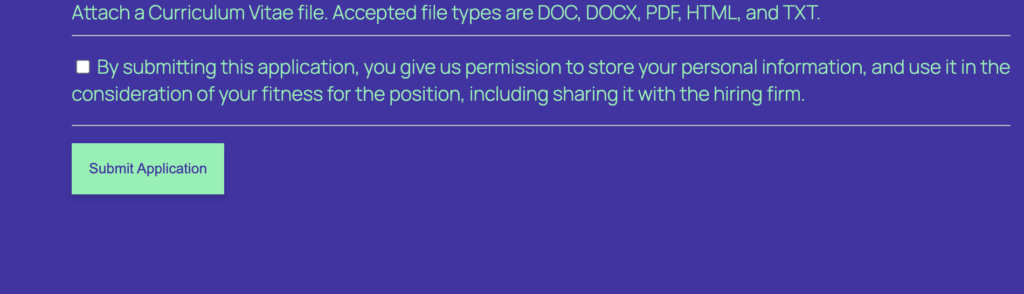
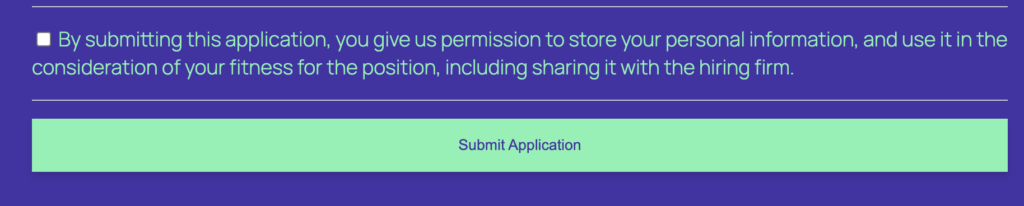
Full Width Submit Button
This setting determines whether the submit button should stretch to fill the full width of the form:
When set to off:
When set to on:
Styling
To style this block use the style tab in the block’s settings sidebar. This block declares support for many of WordPress’ core style controls.
If you are trying to achieve a particular style, but this is proving difficult, feel free to reach out to us for support here.