
Several features built into Bullhorn as well as features provided by Bullhorn 3rd Party Integrations dynamically generate a job URL based on a setting in Bullhorn called careerPortalDomainRoot.
Matador Jobs users running sites in production (aka “live” sites), to ensure that these integrations properly route web traffic to their Matador Jobs job board, need to submit a support ticket to Bullhorn Support to have their careerPortalDomainRoot set to their Matador Jobs job board.
Why careerPortalDomainRoot?
We at Matador Jobs are aware of at least two Bullhorn ATS features or integrations that use careerPortalDomainRoot to direct traffic to your job board. They are:
- Bullhorn Automation (formerly Herefish) which sends notifications (usually SMS or Email) to candidates inviting them to visit job listings.
- Publish to Indeed, which sends copies of your published job listings to Indeed, which adds those jobs to their search and sends clicks on those jobs back to your job listing.
In the event that you have an incorrect careerPortalDomainRoot set, the following could happen:
- Candidates receiving Bullhorn Automation messages get bad links to jobs and will quickly lose trust with your firm and disengage, losing your firm a potential placement.
- Indeed will not add the roles to their search because they are unable to verify the jobs due to bad links, resulting in your firm missing out on traffic from Indeed.
Without a properly set careerPortalDomainRoot, these features are essentially broken. These are only a few features at Bullhorn that might use the setting; there are likely more, including more to be added, as well as other 3rd Party Integrations that will rely on careerPortalDomainRoot to be set and correct.
It is important that your careerPortalDomainRoot is set to a valid job board, whether powered by Matador Jobs or not. The good news is that this is relatively easy to do!
When To Update careerPortalDomainRoot?
While it is easy to have your careerPortalDomainRoot updated, first we should go over when when is the right time to have it set or updated to your Matador Jobs job board.
You should wait to update or set your careerPortalDomainRoot until:
- Your Matador Jobs job board site is installed on a final, production domain. You do not want to change your
careerPortalDomainRootto point to local, development, or staging domains. - Your Matador Jobs job board site is complete and functioning as you’d like. Updating the
careerPortalDomainRootwill begin routing traffic to your Matador Jobs job board immediately, so your site should be ready first! - You’ve made sure to consider your job board URLs by adjusting the “Job Board Location” and “Jobs Listing Slug” settings. The default setting is “jobs” in English and you may want to use a localized or translated term or something different, like “careers,” “openings,” or “opportunities.”
You should make sure to update or set your careerPortalDomainRoot before:
- You begin any campaigns with Bullhorn Automation (formerly Herefish) or Indeed (with jobs fed from Bullhorn’s Publish to Indeed feature) or any other Bullhorn or 3rd Party integration that sends job’s URLs to potential candidates.
- You disable or shut down an existing job board that the
careerPortalDomainRootmay currently be pointed at.
How to Set or Update careerPortalDomainRoot
At this time, you must submit a Bullhorn Support ticket through the Bullhorn Support Portal to have the careerPortalDomainRoot set or updated. Follow these steps:
- Go to the Bullhorn Support Portal, log in, and start a new support ticket.
- Copy-and-paste the suggested email below into the support ticket or write your own.
- Go to your Matador Jobs site to get your live, production site’s
careerPortalDomainRootvalue. You can find it in a few places:- Go to WordPress Admin > Matador Jobs > Settings > Job Listings (Tab), and scroll to the “Jobs Pages URLs Options” section. Find the value in the description under the “Jobs Listings Slug” setting.
- Since Matador Jobs 3.8.0, if your Matador Jobs site has detected your
careerPortalDomainRootdoes not match, the expected value will be included in an admin alert at the top of Matador Jobs admin panels in the WordPress admin.
- Submit the ticket and await a reply confirming it set.
Dear Bullhorn Support,
We are using Matador Jobs, a Bullhorn Marketplace Partner, to offer a job portal on our website. We’d like to have our
careerPortalDomainRootsetting updated to the following value to ensure integrations route traffic to our job portal site.[REPLACE WITH YOUR CAREER PORTAL DOMAIN ROOT]
Thank You,
[YOUR NAME]
Validate careerPortalDomainRoot Was Set/Updated
Since Matador Jobs 3.8.0, you can validate the careerPortalDomainRoot was properly set by clicking the “Recheck” button in the Admin Notice or in the Bullhorn Connection Assistant to check the setting immediately. If the alert goes away, it has been successfully updated.
About the careerPortalDomainRoot Health Check Feature
Matador Jobs 3.8.0 introduced a feature to occasionally validate that the careerPortalDomainRoot value in Bullhorn matches the expected value for your Matador Jobs job board. When a mismatch is found, you will be provided a warning on all your Matador Jobs admin screens in the WordPress admin.
How it Works
About once per day, Matador Jobs will run its careerPortalDomainRoot validation routine. The following checks will occur:
- Does the site have the feature disabled by a developer? If not, continue.
- Does the site have the feature disabled by the setting? If not, continue.
- Has a site admin hidden the feature using the “Remind Me Tomorrow” action? If not, continue.
- Does the site either have WordPress environment variables set or does the URL of the site match a common pattern to confirm the site is a local, development, staging, or test site? If not, continue.
- Has the site completed this check recently? If so, use the results of the previous test unless an admin has just clicked the Retest button.
Provided all of the above checks do not result in an end to the routine, Matador will will then query Bullhorn for the current value of the careerPortalDomainRoot setting, and compare it to the value that it should be set to if we assume this Matador Jobs job board is your intended primary Career Portal. If there is a mismatch, the following warnings will be provided.
First, an Admin Notice will display above any Matador Jobs admin screens in WordPress admin.
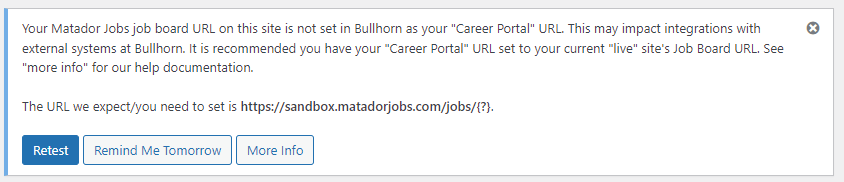
Second, a notice at the top of the Bullhorn Connection Assistant will also be visible.

After working with Bullhorn to update your careerPortalDomainRoot, you can click on the Retest button to check the value again.
Disabling the Feature
Site operators may get these warnings and want to dismiss them. Valid reasons to dismiss the notice include:
- You do not intend to use this installation of Matador Jobs as your main job portal.
- Your site is on a production domain but is not ready to have traffic pointed the Matador Jobs job portal.
- Your site is not a production site, but the feature thinks it is.
You have several options to dismiss the notice temporarily or permanently. They are:
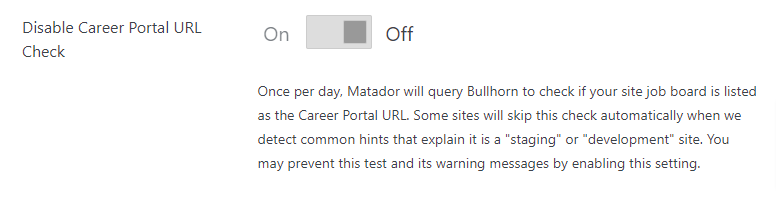
- Dismiss the notice for 24 hours by clicking on the Remind Me Tomorrow button in the Admin Notice. This will hide the notice for at least 24 hours so you can focus on developing your site.
- In the Bullhorn Connection Assistant, turn on the setting “Disable Career Portal URL Check”. It is off by default on new installs or sites updated from before 3.8.0.
- Persons with developer access may add a WordPress filter and pass a boolean false to fully disable the feature. This will not only disable the check but also remove the “Disable Career Portal URL” settings option as well.
// Permanently Disable the careerPortalDomainRoot health check,
// and remove its settings from the Bullhorn Connection Assistant
add_filter( 'matador_health_check_bullhorn_careerPortalDomainRoot_should_check', '__return_false' );
Developer Customizations
- Learn more about setting the WordPress Environment Type, introduced in WordPress 5.5, in this Make WordPress Core news post. Generally, the WordPress Core Team requested managed WordPress web hosts to beginning setting this for all their users, so your web host may already supporting this for you automatically.
- Our tests for whether a site is a local or staging site are copied from the Jetpack plugin, and thus you can use the Jetpack plugins WordPress filters to correct false negatives or false positives for staging or local.
jetpack_known_stagingcan filter the list of staging URL schemes.jetpack_is_local_sitecan override the result of theis_local_site()function.jetpack_is_staging_sitecan override the result of theis_staging_site()function.
- Disable this feature completely by passing a boolean false to the Matador Jobs filter
matador_health_check_bullhorn_careerPortalDomainRoot_should_check.