
Added in Matador Jobs 3.8.4, released December 21, 2022, you can now easily display Salary Ranges on your jobs and via aggregators through changes to Job Structured Data. This will aid agencies subject to new Salary Transparency laws and regulations in being compliant.
Adding Salary Range on Job Listings
With this release, and some minor setup, you can create job listings that display the salary range by default in the Job Info Header.

The setup is somewhat simple but unfortunately may take users some time to update their records in Bullhorn. We’ll walk you through how to import the data and how to display it on your site.
Step 1: Enable Fields Via the Bullhorn Field Mappings Tool
In your Bullhorn account, as a logged in admin user, access the field mappings tool and enable one or two customInt or customFloat type field to use as a Salary/Pay Rate Range High or Salary/Pay Rate Range Low. Label them as you’d prefer and set their display order to show next to the existing Salary or Pay Rate fields.
You can still use salary and/or payRate as either the high or low fields in addition to the customInt or customFloat fields, but we recommend as a best practice for internal purposes that you keep using those fields as you have before, perhaps relabeling them “Target Salary” or “Target Pay Rate”. This will ensure your data continues to work with other solutions that do not yet support salary/pay ranges.
If you use a custom field for both high and low, Matador Jobs will still import the Bullhorn salary and payRate fields as a fallback for users who previously counted on the past behavior. We recommend if you hire a mixture of pay rates that are static and subject to a range that you use the salary field as your static value.
At this time, you should make sure you are also displaying and using the salaryUnit field. This is how you designate a pay by the unit, eg: per hour, per year, etc.
Once you’ve set up these fields, go to Matador’s Settings to get ready for the changes.
Step 2: Define Salary Options in New Salary Options Settings Section
Matador Jobs 3.8.4 comes with a new Settings Section called Salary Options under the Job Listings tab. It contains settings to configure your Salary data import.
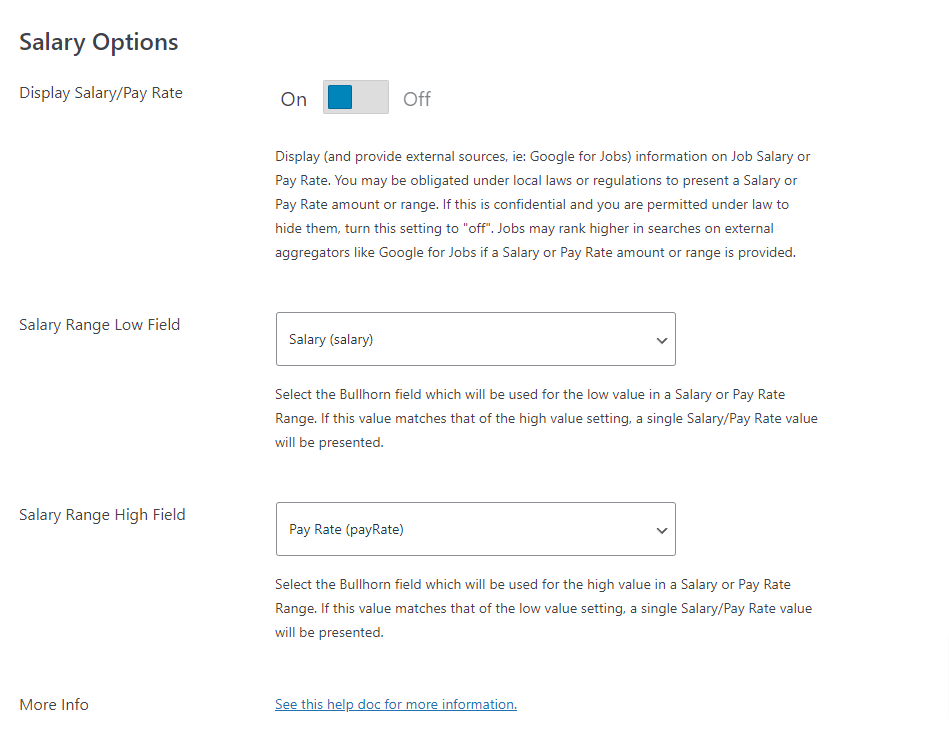
The following options are available:
- Display Salary/Pay Range: This option allows you to turn on or off the display of salary info both on the details and in the Structured Data object. This setting singularly controls both, but you can granularly control each of those two parts via developer filters (see the advanced section for developer filters).
- Salary Range Low/High Fields: These options allow you to select the fields you enabled in the Bullhorn Field Mappings tool for use as the Salary High and Low fields.
Once you’ve completed this, save your settings and go back to Bullhorn.
Step 3: Update Some/All Of Your Jobs
Now that you have a place to put Salary Range Data, go through your jobs and fill in the new fields. At a minimum, you should do this for all jobs subject to the new laws or regulations, but you can delay or choose to not do this for jobs not yet impacted by changes to local law. You may also start off with a subset of your jobs and come back and do more later.
Once your jobs resync, the Job Info Bar will be updated with the new salary or salary range section and the next visit by the aggregation tools including Google for Jobs Search will consume the range values.
In some cases you may now be done.
Step 4 (If Needed): Add The Salary Range to Your Templates
If you are using a custom WordPress template for either your job listings or job single pages and that includes having overridden the Job Info Bar, you may need to update your templates. This may require a WordPress developer.
To fetch the formatted salary string from the data, query the WordPress Post Meta field salary_string. You can do this with both core WordPress functions and Matador’s template helpers.
matador_the_job_meta( 'salary_string' ); // Matador Template Helper, prints value$var = matador_get_the_job_meta( 'salary_string' ); // Matador Template Helper, stores value$var = get_post_meta( get_the_id(), 'salary_string', true ) // WordPress CoreAdvanced Salary Range Details
With this update, we create a number of new job post meta values in addition to the legacy salary related values from earlier versions. When a job is imported, the data from the salary, salaryUnit, the two defined high/low fields, and optionally the developer filter defined salary currency fields are included in the import, and then processed into post meta fields for later use by templates and Structured Data generation.
In order to sustain existing expected behavior, the salary field is always imported and is also the fallback. In the event the salary field is left blank, Matador will set it with either the salary low or salary high fields (whichever of the two is greater).
Any of the fields may be used by WordPress developers to create rich searches and displays. Here are the various post meta fields created by this updated behavior:
salary_string
This is a string of text that dynamically combines the pieces we imported into a succinct summary of the salary or salary range, eg: “$100,000 USD per year” or $97,500 – $105,000 USD per year”, etc. This string is shown in the Job Info Bar by default.
salary, salary_low, and salary_high
The raw values(s) from the imported data. salary_low can be 0 while salary and salary_high cannot be 0 and will be left unset if 0. salary can be replaced by the greater of salary_low or salary_high if not found in the data.
salary_formatted, salary_low_formatted, and salary_high_formatted
A localized, formatted string of text containing the value with currency symbols and number/decimal separators.
salaryUnit
The text string that represents the unit, ie: Annually, Per Hour, etc. Google expects HOUR, DAY, WEEK, MONTH, or YEAR. This can be customized in Bullhorn Field Mappings. Value from the database is mapped against common phrases or terms in English to map values to those expected by Google, ie: “per annum” is mapped to YEAR. If you use localized words, use the developer filter below to map those values.
salary_currency
The currency of the salary. This is the value of the Bullhorn setting, or a custom text field with the salary’s currency, as defined by a developer filter.
Developer Filters
matador_bullhorn_import_bullhorn_salary_currency_field
Allows you to assign a custom text field to your job import that will designate the currency of the pay rate. This is optional but is helpful for users offering roles paid in separate currencies. Default is the value of the default currency in Bullhorn settings. If you use this, you will need to enable the field in Bullhorn Field Mappings like you did the salary low and salary high fields.
<?php // omit opening PHP tag

add_filter( 'matador_bullhorn_import_bullhorn_salary_currency_field', 'example_fn', 10 );
function example_fn( $custom_field_name ) {

    $custom_field_name = 'payRateCurrencyFieldName';

    return $custom_field_name;
}
matador_job_structured_data_salary_unit
This filter will return the mapped value, if found, for the pay unit as expected by Structured Data and a second variable as the value found in the data. It can be used to compare localized words and map to the Structure Data expectation.
<?php // omit opening PHP tag

add_filter( 'matador_job_structured_data_salary_unit', 'example', 10, 2 );
function example( $unit, $from_bullhorn ) {
	// al año = per year
	if ( 'al año' === $from_bullhorn ) {
		return 'YEAR'; // what Google/Structured Data expects
	}
	return $unit;
}
matador_bullhorn_import_salary_range_separator
Allows you to change the characters or text that separates two numbers in a range. The default is an n-dash, or -.
<?php // omit opening PHP tag

add_filter( 'matador_bullhorn_import_salary_range_separator', 'example', 10 );
function example( $range_separator ) {

    // replace ' - ' with ' to ' to display '$97,500 to $105,000 USD per year'
    return ' to ';
}
matador_bullhorn_import_salary_unit_separator
Allows you to change the characters or text that separate the last pay rate from the pay unit. Default is a single non-breaking space , e.g., the space between ‘USD’ and ‘per year’ in the string ‘$100,000 USD per year’.
<?php // omit opening PHP tag

add_filter( 'matador_bullhorn_import_salary_unit_separator', 'example', 10 );
function example( $unit_separator ) {

   // replace ' ' with ' /' to display '$97,500 - $105,000 USD / per year'
   return ' / ';
}
matador_bullhorn_import_salary_string
Allows you to further customize the text string that makes up a salary statement. Default is the string we construct, and it is passed an array of arguments with all the imported salary parts.
<?php // omit opening PHP tag

add_filter( 'matador_bullhorn_import_salary_string', 'example', 10 );
function example( $salary_string, $meta ) {

    $new_salary_string = $salary_string . '(subject to experience)';

    return $new_salary_string;
}
matador_structured_data_include_salary
Used to control if the salary is included in the structured data by passing true or false to hide salary fields from the external structured data (used by Google and others to aggregate job data). It defaults to the settings option “Display Salary/Pay Rate”. If you are required by local law or regulation to show pay rate, Google may not present your jobs if this is not provided. Accepts true or false.
<?php // omit opening PHP tag

add_filter( 'matador_structured_data_include_salary', 'example', 10 );
function example( $jsonld_salary ) {

  return true;
}
matador_template_job_info_show_pay
Used to control if the salary is included in the Job Info Bar by passing true or false to show or hide the Salary/Salary Range text in the Job Info Bar. The Job Info Bar is getting a little crowded, we’ll admit, but it is the most consistent way we can include this by default without breaking users’ layouts. It defaults to the settings option “Display Salary/Pay Rate”.
<?php // omit opening PHP tag

add_filter( 'matador_template_job_info_show_pay', 'example', 10 );
function example( $jsonld_salary ) {

  return true;
}