
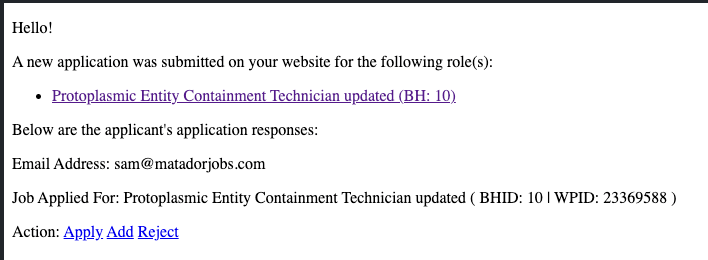
As of Matador Jobs Pro 3.9, it is possible to enable prescreening for applications. When enabled, the pre-screen feature will hold an application for screening. The recruiter will receive an email or notification on messaging apps (when Slack, etc, services are enabled) with a summary of the application data. The recruiter will see action links in email, notification, and in admin user interfaces in the WordPress Admin screens for Matador Jobs that give them the option to “delete”, “add”, or “apply”.
- “Reject” will remove the application data from the site and never submit it to your ATS system.
- “Add” will create a new person or candidate record in your ATS, but not submit that candidate for a role. This allows recruiters to build a database of candidates even when the candidate may be unfit for the applied role.
- “Apply” will create a new person or candidate record in your ATS and then link the record as a job submission. This option may not appear for candidates who submit information on the general application form.
Setting up application prescreening
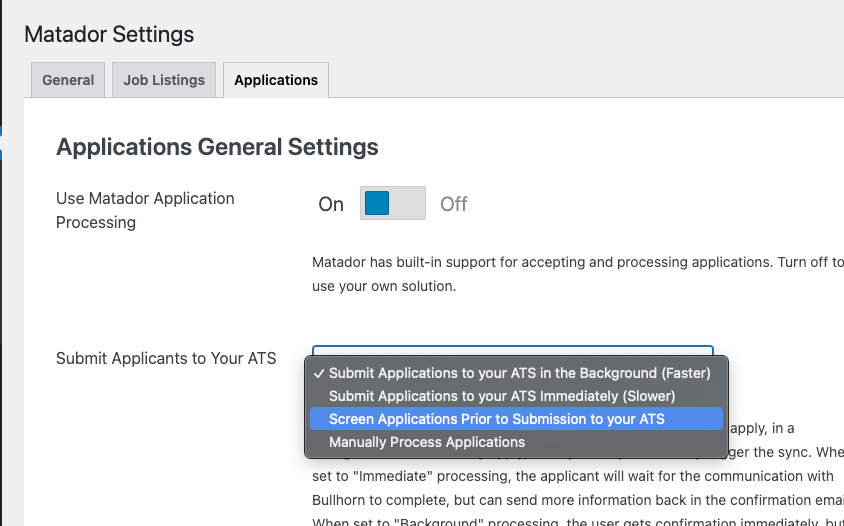
First, you’ll need to make sure you’re updated to Matador Jobs Pro version 3.9. Once this is done, open your WP admin dashboard and go to Matador >> Settings >> Applications >> Submit Applicants to Your ATS. Select the option ‘Screen Applications Prior to Submission to your ATS’ from the dropdown.
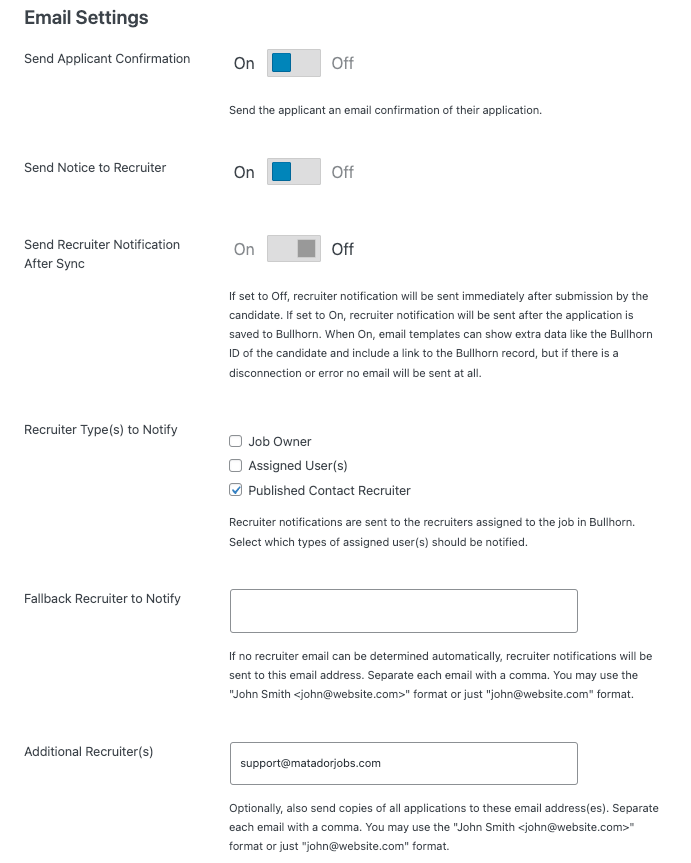
Next scroll down to the ‘Email Settings’ section and make sure ‘Send Notice to Recruiter is set to ‘On’ and that you have at least one of the ‘Recruiter Type(s) to Notify’ checked. Now scroll all the way to the bottom and click ‘Save Changes’.
Now it’s time to run a quick test to ensure everything is set up correctly.
Go and submit an application to one of your jobs, then visit Matador >> Applications. You Should see the application you just submitted with actions buttons to Apply, Add or Reject the application.

Now go to the email inbox where you expect to receive the recruiter notification email. You should see an email with links to Apply, Add, or Reject the application. Clicking these links will trigger the corresponding action so you can screen applications from your email inbox.
Application Screening Reminders (versions 4.0.0 and above)
As of Matador Jobs Pro 4.0.0, Application Prescreening includes Application Screening Reminders. This feature helps ensure applications don’t get overlooked if no action is taken after the initial screening notification.
What are Application Screening Reminders?
When an application is held for screening and no action is taken (Apply, Add, or Reject), Matador Jobs Pro can automatically send reminder emails to recruiters. These reminders continue until the application is acted upon, helping teams stay on top of pending applications and maintain consistent response times.
By default, reminders are sent once every 24 hours, but this behavior is fully customizable.
Customizing Reminder Behavior (Developer Hooks)
Application Screening Reminders are designed to be flexible and developer-friendly. The following WordPress filters and actions are available to tailor the behavior to your workflow.
Change How Often Reminders Are Sent
By default, reminders send once every 24 hours. You can customize this interval using the following filter:
- Filter:
matador_application_screen_reminder_delay
This filter allows you to modify the delay (in seconds) between reminder emails.
/**
* Unscreened Applications Reminders Delay
*
* @wordpress-filter `matador_application_screen_reminder_delay`
* The time, in seconds, which should elapse between a last action on an application and a reminder being sent.
*
* @since 4.0.0
*
* @param int $delay Time (in seconds) that should elapse between the sending of reminders. Default is 86,400,
*                   or 24 hours.
*
* @return int
*/
$delay = (int) apply_filters( 'matador_application_screen_reminder_delay', DAY_IN_SECONDS );
Control Which Applications Receive Reminders
Before reminders are processed, the list of overdue applications can be filtered:
- Filter:
matador_application_screen_reminder_applications
This is useful if you want to exclude certain jobs, recruiters, or application types from reminder emails entirely.
		/**
		 * Unscreened Applications Due for Reminder
		 *
		 * @wordpress-filter `matador_application_screen_reminder_applications`
		 *
		 * Filter the array of Application IDs deemed to be overdue and requiring a reminder.
		 *
		 * @since 4.0.0
		 *
		 * @param array $applications WordPress Post IDs for the applications which require a screening reminder.
		 *
		 * @return array
		 */
		return apply_filters( 'matador_application_screen_reminder_applications', $applications->posts ?? [] );
Run Custom Logic When Reminders Are Processed
Two WordPress actions are available to hook into the reminder process:
- Action:
matador_application_screen_reminders_each
Runs once for each application being processed for reminders. - Action:
matador_application_screen_reminders_all
Runs once after all applications have been processed.
These actions are ideal for logging, analytics, third-party notifications, or custom escalation logic.
		/**
		 * Overdue Unscreened Applications All
		 *
		 * @wordpress-action `matador_application_screen_reminders_all`
		 *
		 * Run a custom action on all overdue unscreened applications. The argument passed into this action can be
		 * empty, which could be useful if you want to do something specific when there are no overdue unscreened
		 * applications.
		 *
		 * @since 4.0.0
		 *
		 * @param array $overdue_unscreened_applications An array of WordPress Post ids for applications that remain unscreened after the defined screening delay. By default, the delay is 24hrs.
		 */
		do_action( 'matador_application_screen_reminders_all', $overdue_unscreened_application_ids );

		/**
		  * Overdue Unscreened Applications Each
		 *
		 * @wordpress-action `matador_application_screen_reminders_each`
		 *
		 * Run a custom action on each overdue unscreened application.
		 *
		 * @since 4.0.0
		 *
		 * @param int $wpid The WordPress ID of the application
		 */
		do_action( 'matador_application_screen_reminders_each', $wpid );
Decide Whether a Reminder Should Be Sent for a Specific Application
If you need fine-grained control over reminder delivery on a per-application basis, use:
- Filter:
matador_application_screen_overdue_should_send
This filter allows you to conditionally prevent a reminder from being sent for an individual overdue application, even if it meets all other criteria.
				/**
				 * Filter: Should a reminder email be sent for this application?
				 *
				 * @wordpress-filter `matador_application_screen_overdue_should_send`
				 *
				 * @since 4.0.0
				 *
				 * @param bool  $should_send True/False should send a reminder for this application. Default true.
				 * @param array $application The Matador Application data array.
				 * @param int   $wpid        The WordPress ID of the Application.
				 *
				 * @return bool $should_send
				 */
				if ( apply_filters( 'matador_application_screen_reminder_should_send', true, $application, $wpid ) ) {