
This help doc article will help you set up the Matador Jobs Pro Lead Form for Bullhorn Extension.
Before You Begin: Make Sure This is Right for You
This plugin is for a specific use case and many of the installations of this extension plugin in the past were probably not the right use case. Here are what we consider to be the primary use cases for this extension:
- Your firm uses the Customer Relationship Management (CRM) tools of the Bullhorn ATS system, preferably the Leads and ClientContact tools.
- Your firm receives a high volume of requests from your website from potential clients seeking your services in filling vacancies at their company.
- You can isolate the Client Lead Form to a part of your website that will prevent generic inquiries, including those from potential applicants to your roles, from using the form. This is to prevent your Leads and ClientContacts databases from becoming full of irrelevant data.
Installation
To download and install this extension, please follow our Matador Jobs Pro extension download and installation guide.
General Use
Once installed and activated, create a WordPress page and on that page put the shortcode [matador_bullhorn_lead_form] (for help using Shortcodes, see our guide on shortcodes). Save the page. When viewing the page from the front-end, it might look something like the example below.

The form, by default, will include a “Purpose of Your Message” which selects between “I’m Looking for Talent” and “I’m Looking for a Job.” This is a backup for the event which a job applicant finds the form. If “I’m Looking for a Job” is selected, Matador will add a resume upload field and route the response through the Application processing system.
Generally, you should not use this plugin without configuring the settings, but for fun, let’s fill out and submit the form. The response will cause the page to update to the following thank you message (which in settings can be turned into a redirect to a more fully built out “Thank You” page).

Now, let’s see what was saved to the Matador Submissions section.
Assuming the submission has not yet synced, it will look something like this.
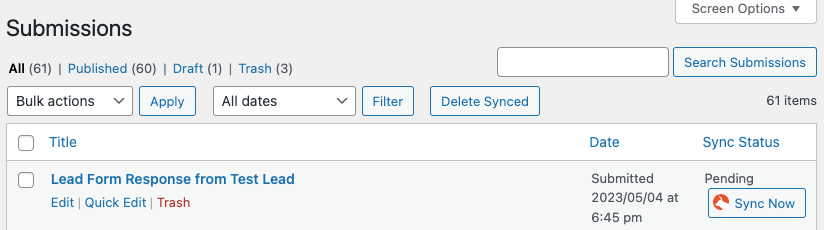
If the website user filled out “I’m Looking for a Job”, this would actually say “Test Lead applied to a position.”
On the next regular sync, or by clicking “Sync Now” this submission will be processed into Bullhorn. Assuming you have your settings properly set (more on that in a moment), the result might look something like this:

If logged into Bullhorn, the links will connect directly to the entries in Bullhorn for your review.
Advanced Use
The following docs will help you get more out of this extension.